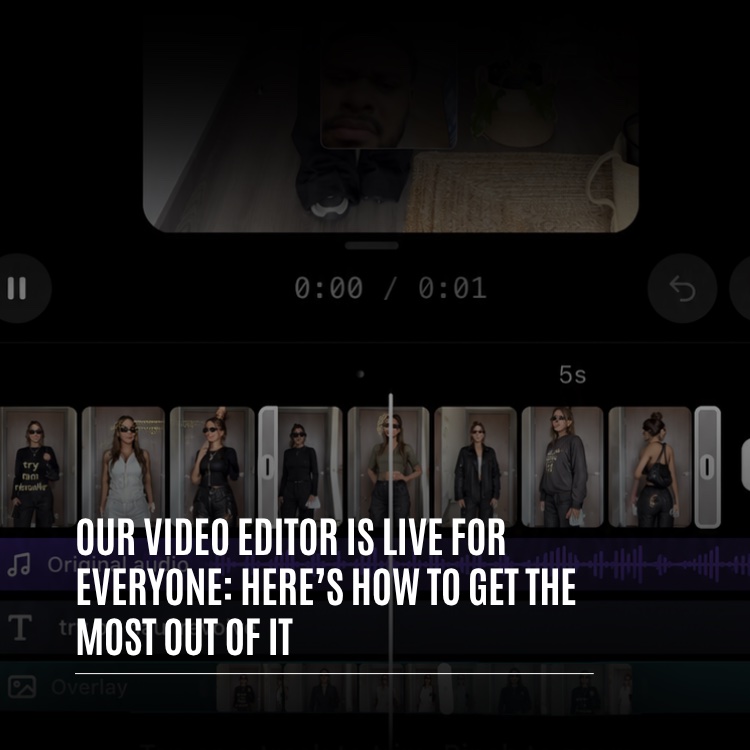
Product · October 21, 2026 · 14 min read
The Whistlr Video Editor: A Working Guide for Brands and Creators
The Whistlr video editor is now free for every account. Learn to cut clips, sync music, auto-caption and use pro tools to make product videos that sell.
The Whistlr video editor is now open to every account at no cost, built straight into the flow you already use to publish. For brands, storefront owners and creators who earn on Whistlr, that means a single workspace for arranging clips on a multi-track timeline, laying in music and narration, cleaning up rough audio, generating captions automatically, adding text and stickers, and reaching for advanced tools such as speed ramps, keyframe animation, still frames and green-screen keying. This guide explains how the screen is organized, which tools matter most for business content, and a repeatable routine for turning raw footage into a finished product video.
The Whistlr Video Editor Is Now Open to Every Account
Nothing stands between you and the editor. There is no Creator account requirement, no follower threshold and no paid plan. Anyone able to publish a video on Whistlr can shape it with exactly the toolkit the platform's busiest creators rely on, advanced features included: captions, effects, speed curves and chroma key are available to all.
For a small business, that evens the odds in a practical way. A shop that launched last week and a creator with a huge following begin with an identical timeline. What separates their results is the idea, the footage and the editing habits, which is exactly what this guide focuses on.
The version reaching everyone now was rebuilt from its foundations, trialed with an early group of users and adjusted almost daily in response to what they reported. If you followed its development, our earlier look at what to expect from the next version of the editor covers the direction it was heading. This piece is about using it well today.
Why an In-App Editor Saves Businesses Time
Plenty of brands still cut footage in one app, add captions in a second and export more than once before anything is ready to publish. Each handoff eats time and can degrade the file. Doing the whole job inside Whistlr removes those steps.
It Lives in the Posting Flow
You do not install or enable anything. Begin a post, shoot with the in-app camera or choose footage already saved on your phone, and the editor loads with that footage ready. The plus button brings in additional clips, from either source, and lines them up along your primary track.
You Write While It Renders
Tapping Next takes you straight to the composer. There is no waiting on an export before you can start your caption, because the finished file is assembled behind the scenes as you write, and the upload begins once it is ready. For anyone publishing several times a week, those minutes add up. Our guide to saving time while creating has more ideas for keeping production lean.
Finding Your Way Around: Preview, Timeline and Toolbar
The screen is arranged in three bands from top to bottom. Once you know the job of each band, the rest of the editor makes sense.
The Preview
The top band is a faithful preview of the final post, showing every caption, title, sticker, filter and effect in place. Beneath it is a playback strip with a play/pause control, a readout of elapsed versus total time, and undo and redo. Titles and stickers can be dragged around right on the preview, where they lock onto the horizontal and vertical midlines with a guide line, so placing a product name or price dead center is one gesture.
The Timeline
Time markings run along the top of the timeline, and a white vertical line, the playhead, crosses every track to mark your current position. The primary footage occupies a thumbnail strip along the base. Stacked above it, each content type gets its own track:
- Original audio: sound captured with your footage, ready to be lowered, silenced or cleaned.
- Music: the track you picked, marked with dots wherever a beat falls.
- Voiceover: narration you record, displayed as individual takes.
- Text and stickers: every title, caption, emoji and sticker appears as its own movable, trimmable block.
- Overlay: images and video layered over the primary footage, with a total of three video tracks available.
A pinch zooms in for frame-level precision or out to show the full length at once. As you drag or trim anything, it locks onto the playhead and onto neighboring blocks with a light haptic tick, so lining a caption up with a cut happens almost by itself.
The Toolbar
When nothing is selected, the bottom bar offers the general tools, which in alphabetical order are Adjust, Audio, Captions, Crop, Draw, Effects, Filters, Overlay, Photo, Speed, Sticker, Text, Transitions, Voice effects, Voiceover and Volume. Select a clip and the bar swaps to options for that clip, among them Cut silences, Delete, Duplicate, Enhance audio, Extract audio, Reorder, Replace, Speed, Split and Volume. A back arrow restores the general set. Because the bar always matches your selection, you rarely hunt for a control.
Building the Cut: Trim, Split, Reorder and Transitions
A strong product video is mostly a strong cut. These are the essential moves.
Trim and Split
Each clip has a handle on both ends; pull one inward to shorten it. The handles only respond to an intentional drag, so brushing them while scrolling will not accidentally clip your footage. To break a clip into two, park the playhead on the exact frame and choose Split. Both halves then act independently, so each can be shortened, repositioned, removed or styled differently. Splitting is how you cut the fumble out of the middle of an unboxing without reshooting it.
Reorder
Press and hold a clip on the primary track and the whole timeline shrinks into a row of square thumbnails. Slide them into a new sequence, release, and the track opens back up in that order with no empty space. It is the fastest way to test whether a demo works better opening with the finished result or with the problem it solves.
Transitions
Touch the join between two clips to choose from fourteen transitions, sorted into four families:
- Basic: Blur, Dissolve, Fade black and Fade white, for gentle scene changes.
- Motion: Wipe, plus four directional slides (left, right, up and down).
- Camera: Spin, Zoom in and Zoom out.
- Effects: Flash and Glitch.
For most brand content, the Basic family is the safe choice because it keeps attention on the product. Save Flash and Glitch for a reveal, such as the moment a new colorway appears.
Sync to Beat
With a song in place, choose Sync to beat and the editor shifts every cut on the primary track so it lands on a beat. It works purely by shortening; footage you already removed never comes back, and no gaps are left behind. For a lookbook or a new-arrivals montage, make rough trims and let the tool handle the precision.
Audio in the Whistlr Video Editor: Music, Voiceover and Cleanup
Viewers will forgive a slightly soft frame long before they forgive bad sound. The editor treats audio with the same care as the image.
Music and Volume
Pick a song through the Audio tool, then use Edit to select the exact stretch you want. The beat markers on the music track let you align cuts visually. Volume puts a separate level slider and on/off switch on every sound source, whether that is your recorded audio, the song or your narration, so pulling the music down beneath your voice takes seconds.
Voiceover
In Voiceover, a large button starts recording at the playhead's position while the footage plays, letting you describe a product as it appears. A red track extends beneath the playhead as you talk. Stop when you are done, listen back, record again if needed, or confirm with Done to drop the take onto the timeline.
Voice Effects and Text to Speech
Six voice effects can be applied to one clip or the entire video: Announcer, Echo, Giant, Helium, Robot and Vocalist. If you would rather not narrate yourself, highlight any text block and choose Text to speech. A synthetic voice reads it out, and the resulting audio is placed at the point where that text begins, at your choice of Slow, Normal or Fast. That is useful for a quick feature list or a price callout.
Enhance Audio and Cut Silences
Two clip-level tools handle cleanup that once needed a dedicated audio app:
- Enhance audio suppresses background noise and echo, shapes the voice and levels its volume with a single tap. A slider controls how strong the treatment is, and it can be applied across all clips together. It suits footage shot in a busy shop or a workshop.
- Cut silences detects gaps in speech and removes them. Light preserves natural breathing room, Medium tightens things up, and Tight suits rapid talking-head content. Because the result is a set of ordinary splits, each segment stays editable, and reversing the whole operation takes one undo.
Captions and On-Screen Text in the Whistlr Video Editor
A large share of viewers scroll with the sound off, so captions often decide whether your message lands. They also widen accessibility and make videos easier to follow.
Automatic Captions
In Captions, either let the editor detect the spoken language or choose one yourself, and it produces a timed transcript on a dedicated track. Style options include presets and animations that move word by word as speech happens: Bounce, Box, Highlight, Pop, Reveal, Rise and Type. Then decide how much text shows at once:
- Punchy: between one and three words, ideal for quick, high-energy edits.
- Balanced: a single short line.
- Full: as many as two lines, better for slower explainers.
You can also resize captions and position them high, centered or low in the frame. Nothing is locked: a list view shows every line, tapping one jumps the video there, and a second tap lets you correct the wording. Timing for each word follows any edits you make, keeping the animation aligned. Always check product names, prices and brand terms in that list before you post.
Animated Text
Text works as its own creative tool for hooks, titles and labels. Choose a typeface and style, then add motion for how it enters, loops or exits. The animation choices are Blur, Bounce, Fade, Glitch, Neon, Pop, Rise, Slide, Typewriter, Wave, Word by word and Zoom. Each block sits on the timeline, giving you exact control over its timing and duration.
Stickers, Photos and Drawing
Stickers and emoji behave just like text, on the preview and on the timeline. Photo lays a still image over your footage, handy for a logo or a packaging shot. Draw lets you mark up the frame by hand, with a choice of brush, thickness and color, and because strokes are saved as vectors they remain crisp at full resolution. Circling a detail you want viewers to notice is a simple, effective use.
Setting the Look: Filters, Adjust and Effects
A consistent look is part of what makes a brand recognizable from post to post. Visual control comes in three tiers:
- Filters: the same set offered by the in-app camera, presented as a scrolling row of round thumbnails that preview your current frame, with an intensity slider. Use one on a single clip or across the whole piece.
- Adjust: clip-by-clip sliders for Brightness, Contrast, Fade, Grain, Highlights, Saturation, Shadows, Sharpen, Structure, Vignette and Warmth.
- Effects: seventeen visual effects, placed from the playhead and trimmed like any clip. They come in four families: Light (Bokeh, Flash, Light leak), Magic (Confetti, Hearts, Snow, Sparkle), Motion (Blur in, Blur out, Echo, Shake, Zoom pulse) and Retro (Film grain, Glitch, Old TV, RGB split, VHS).
Because effects are timeline blocks, you can put a Zoom pulse on one beat or let Snow fall across a single scene of a seasonal promo. Crop completes the set, so you can reframe a shot without filming it again. A practical habit is to choose one filter for your brand and use it on every product video, correcting individual clips in Adjust only when the lighting differs.
Advanced Edits for Product and Brand Videos
When a cut and a filter are not enough, the editor includes tools that used to belong to desktop software.
Speed and Speed Curves
Fixed speeds range from 0.3x to 4x, and you decide whether the original sound plays along or drops out. Switching to Curve lets the pace change within one clip. Ready-made curves include Bullet, Flash in, Flash out, Hero, Jump cut and Montage, and a Custom option lets you draw your own. Hero slows down at the key moment, such as a pour, a fabric swish or a product landing on a table, which gives a simple shot real presence.
Keyframes
Keyframes bring motion to titles, stickers and overlays. Set where an item sits, how large it is, its angle and its transparency at one point in time, set those values differently later, and the editor fills in a smooth transition. For business content, the obvious use is a label gliding in beside a product. You can also enlarge a sticker on a punchline or move a picture-in-picture clip across the screen.
Freeze Frame and Reverse
Freeze captures whatever frame the playhead is on and holds it for a duration you choose, from 0.8 up to 10 seconds, pushing the rest of the timeline later. That still acts like a normal clip, ready for a title, an effect or a transition, which makes it ideal for pausing on a finished product while a price or feature appears. Reverse runs a clip backward, a natural fit for a pour, a toss or a jump that looks better rewound.
Chroma Key and Overlay Rows
Chroma key removes a single chosen color from an overlay clip. Sample that color with the eyedropper on the preview, tune the strength, and decide whether gentle shadows should survive. A clip of you filmed against green can then sit convincingly over product footage below it. Overlays can occupy as many as three video tracks; Row up and Row down change the stacking order, and Unify collapses all of them into the primary track when you want a plain sequence again.
One well-placed speed ramp or freeze on the big moment does more for a product video than an effect on every clip.
Safety Nets: Undo, Recovery Drafts and Reliable Renders
People edit more boldly when they know they cannot lose their work. The editor was built with that in mind:
- History: undo and redo reach back 50 steps, so an experiment is always reversible.
- Recovery drafts: the first meaningful edit triggers an automatic backup. If the app quits unexpectedly, you are offered your work back on the next launch.
- Resilient rendering: the export keeps going while you write the caption, and if you leave the app or the phone suspends it, the job resumes on your return rather than failing.
- Verified files: every finished render is checked before use, so an incomplete video never gets posted.
Projects can run to 10 minutes in total, measured across all of your clips combined. That leaves room for a longer tutorial or a full product walkthrough assembled from many short takes. If you go over, the editor flags it so you can cut it down before publishing.
A Ten-Step Workflow for a Product Video
Here is a repeatable routine from raw footage to a finished post. Run it a few times and it becomes second nature.
- Gather your footage. Begin a post, film or select a clip, then add the rest with the plus button.
- Fix the sound first. Run Enhance audio and, for talking clips, Cut silences, so everything after builds on clean audio.
- Trim and split. Lose the slow openings, awkward endings and any mistakes in the middle.
- Order the story. Hold and drag the thumbnails until the sequence works: hook, product, proof, call to action.
- Generate captions. Let the editor detect the language, choose a style and correct names and prices in the list view.
- Add a hook in the first second. Put animated text over your strongest moment so viewers know why to stay.
- Add music and balance it. Choose a section in Audio, use Sync to beat for montages, and lower the song beneath your voice in Volume.
- Apply your brand look. Use your usual filter and correct mismatched clips in Adjust.
- Add one advanced touch. A Hero ramp, a freeze with a price, or a keyframed label is usually enough.
- Review, then publish. Watch the full video once, tighten anything slow, tap Next and write your caption while the file renders.
Habits Worth Building
- Caption before you polish: seeing your words written out is the quickest way to find the part of a video that drags.
- Match caption density to pace: Punchy keeps a fast video feeling fast, while Full gives a slower explainer room to breathe.
- Let the beat place the cuts: for montages, rough trims plus Sync to beat are faster and tighter than aligning cuts by hand.
- Ration the advanced tools: a single ramp or freeze at the climax is more striking than effects layered on every clip.
- Reuse your setup: the same filter, caption style and font across posts makes your videos recognizable before anyone reads your name.
Once the video is live, put it to work. Short edits made with this routine suit Minis, and if you sell products, our Whistlr Go guide covers how to turn viewers into buyers. For more ideas on what to film next, see our guide to creating engaging content.
Frequently Asked Questions
Does the Whistlr video editor cost anything?
No. Every Whistlr account can use it for free from within the posting flow. It does not require a Creator account, a follower count or a subscription, and the full toolkit, captions, effects, speed curves and chroma key included, is open to all.
What is the maximum video length?
A project can total 10 minutes across all of its clips combined. Go past that and the editor flags it so you can shorten the edit before publishing.
How do I add automatic captions on Whistlr?
Open Captions, let the editor detect the language or pick one, and a timed transcript appears on its own track. Choose a style, select Punchy, Balanced or Full, adjust the size and placement, and tap any line in the list to correct it.
Can I clean up audio recorded in a noisy space?
Yes. Select the clip and use Enhance audio to reduce noise and echo and even out the voice, adjusting strength with the slider or applying it to all clips. Follow up with Cut silences at Light, Medium or Tight to remove pauses.
What advanced tools are included?
You get fixed speeds between 0.3x and 4x, preset curves such as Hero, Montage and Bullet, keyframe animation for titles, stickers and overlays, still frames lasting 0.8 to 10 seconds, reverse playback, chroma key and three video tracks for layering.
Will I lose my edit if the app closes?
No. After your first meaningful change, a recovery draft is saved automatically, and the app offers to bring it back on your next launch. You can also step back through 50 actions with undo while you work.
Good editing used to require extra apps and extra time. Now it sits one tap from the post button for every account on Whistlr. Open the app, begin a post and turn your next batch of product clips into a video that earns the watch.