Product · October 21, 2026 · 13 min read
Free Channel Subscriptions on Whistlr Bring Viewers Back Every Time You Go Live
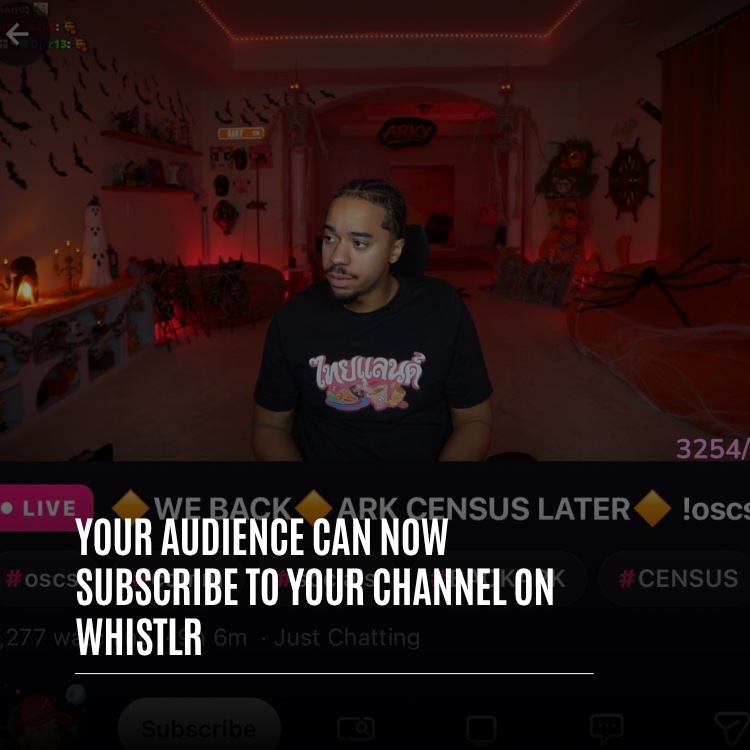
Whistlr channel subscriptions are free for viewers: one tap turns on live alerts and a Home feed banner, so your audience is back the moment you go live.
Whistlr channel subscriptions give your audience a free, one-tap way to be told whenever you go live. A viewer taps the pink Subscribe button, and from then on they get a push alert when your stream starts, see your channel in a live banner at the top of their Home feed and keep you in a dedicated list of the channels they follow live. For creators and brands who stream as part of their business, that solves the most stubborn problem in live video: getting people who enjoyed one broadcast to show up for the next. This guide explains how subscriptions work for viewers, how they differ from following and Vault, and how to build a subscriber base that actually turns up.
The Repeat-Viewer Problem Every Live Business Faces
Recorded posts can be found at any time. A live stream cannot. If someone discovers you halfway through a broadcast, enjoys every minute and then closes the app, there is a good chance they never see you live again, simply because they had no idea when you would be back. That is a costly gap for anyone who sells on stream, collects Gems or uses live sessions to build a community around a brand.
The first minutes of a broadcast make it worse. A room that fills quickly attracts more viewers, gets chat moving and gives the host energy to work with. A room that starts empty has to be built from nothing every single time. Channel subscriptions are designed to close that gap by connecting the moment someone decides they like you with the moment you next press go live.
How Whistlr Channel Subscriptions Work
Subscribing to a channel on Whistlr is a request to be notified when that channel is live. It is free, it is tied to a specific channel and it is built around the timing that makes live streaming different from every other format.
When a viewer taps Subscribe, three things happen at once:
- The channel joins their list: it is added to the subscriptions they manage in Streamers Channels.
- Live alerts switch on: they will get a push notification when that channel starts streaming.
- The Home banner can feature you: whenever you are streaming, your channel can show up in the live banner that sits above their Home feed.
The button then reads Subscribed, so viewers always know where they stand. Tapping it again unsubscribes them, which means the button never shows a stale state.
A Whistlr Account Is Required
People who are not signed in can still watch your streams, but they will not see the Subscribe pill. Subscriptions belong to an account, since alerts, the banner and the list are all personal to the viewer who set them up. For a business, that has a useful side effect: every subscriber is a real person with a real Whistlr account, not an anonymous tally.
Subscribe, Follow or Vault: Choosing the Right Ask
Whistlr gives people several ways to connect with you, and each one answers a different question. Knowing the difference helps you ask for the right thing at the right time instead of asking for everything at once.
- Follow: the everyday relationship. Following brings your posts, Minis and updates into someone's Whistlr experience.
- Subscribe: the live relationship. It is free, connected to your channel and exists to make sure someone knows when you are streaming, through live alerts, the Home live banner and their Streamers Channels list.
- Vault: the premium relationship. Vault is a paid monthly subscription that unlocks a creator's exclusive photos and videos, kept in a locked tab on their profile.
A simple way to frame it for your audience: following means you like what someone posts, subscribing means you want to be there when they go live, and Vault means you want everything they make and are happy to pay for it. A channel subscription costs the viewer nothing and asks for no payment details, so it is the easiest commitment you can request. If you also offer paid content, our guide to the Subscription Vault explains how the paid tier works.
How the Three Work Together
These relationships are not competitors. A single fan can follow you, subscribe to your channel and pay for your Vault at the same time, and each connection does a separate job. Following keeps your everyday posts in front of them, subscribing makes sure they catch your broadcasts, and Vault gives them a premium layer if they want more. The practical lesson for creators is sequencing. Ask a new viewer for the free subscribe first, because it is low effort and pays off the next time you stream. Save the paid ask for people who already show up regularly and have seen what you offer.
Where the Subscribe Button Appears
The Subscribe button is placed at the point where viewers make up their minds about a channel, which is usually partway through a stream. It is the same pink pill everywhere, so viewers quickly learn to spot it.
- Beneath the stream: on the stream page, Subscribe sits beside the streamer's avatar, next to quick actions for mini player, theater mode, chat and share.
- In the full-screen header: when someone watches full screen, a "+ Subscribe" pill is tucked into the host's name pill at the top, so subscribing never interrupts the stream.
- On your channel profile: your profile has its own Subscribe button for people who like to look around before committing.
Because the button is always within reach during a broadcast, you never need to send people elsewhere to subscribe. A quick verbal prompt is enough, and the action takes a single tap.
It helps to describe where the button is, because viewers watch in different layouts. Someone on the stream page will find it next to your avatar, while someone in full-screen live will see it inside your name pill at the top. Mentioning both once or twice per stream covers almost everyone, and the change to Subscribed gives each viewer instant confirmation that it worked.
Live Alerts and the Home Banner: How Subscribers Find Their Way Back
Subscriptions reach viewers through two channels, one active and one passive. Together they make it far more likely that the people who chose you will see that you are on.
Live Alerts
Live alerts are push notifications that tell a subscriber your channel is live. Whistlr checks subscribed channels regularly, roughly every couple of minutes, and sends the alert once a stream has started. Subscribers do not have to refresh anything or remember your schedule. They subscribe once, and the alerts handle the rest, which usually brings them in during the early minutes, when chat is warming up and a stream is at its most social.
That timing is what makes alerts valuable for a business. A subscriber who arrives in the opening minutes hears your introduction, sees what the stream is about and is there for whatever you have planned, whether that is a product reveal, a Q&A or a battle. Arriving late, through a clip or a friend, rarely has the same effect.
Per-Channel Alert Control
Not every channel needs to buzz someone's phone, and Whistlr does not assume otherwise. Viewers can turn live alerts off or on for each channel individually. Choosing Turn off live alerts from a channel's menu keeps that channel in their subscriptions and in their Home banner, without a push every time it goes live. Turn on live alerts reverses it at any time.
This control works in creators' favor. Subscribers keep alerts on only for the channels they genuinely do not want to miss, so each alert that is sent has a much better chance of turning into a view. And because people can quiet a channel without leaving it, they have less reason to unsubscribe entirely.
The Live Banner on Home
Notifications are easy to miss, so subscriptions also appear somewhere viewers look constantly: the top of the Home feed. When a subscribed channel is live, a slim banner slides out beneath the navigation bar. It shows the channel's avatar wrapped in a colorful LIVE ring, how many people are watching and an icon indicating the type of stream. One tap opens it.
If several subscribed channels are live together, the banner cycles between them, moving to the next one every six seconds. It never shifts the feed or changes the viewer's position in it. It simply sits on top and eases away when none of their channels are live. For creators, that means even subscribers who have muted your alerts still get a gentle reminder whenever they open Home while you are on.
What Subscribers Control on Their Side
A subscription system only works if viewers trust it. Whistlr gives subscribers a clear place to manage their channels and strong defaults around privacy, which means the people subscribed to you are people who genuinely want to be there.
The Streamers Channels Screen
Viewers manage subscriptions in Streamers Channels, which lives in Account Center within the Your content and favorites section. It is a searchable list of every channel they subscribe to, with live status built in.
- A running count: the number of channels they subscribe to appears at the top.
- Live status: any channel on air displays its content, its title and its viewer count, letting viewers jump straight in.
- Search: any channel can be found by name or username, which helps as the list grows.
- Profiles: tapping a channel opens its profile.
- A menu for each channel: turn live alerts off or on, or unsubscribe.
Notice that live channels display their stream title and viewer count here. That makes your title part of your marketing: when a subscriber scans their list, a specific, inviting title is what convinces them to tap yours over another.
Deliberate Unsubscribing
Unsubscribing from Streamers Channels requires confirmation, and the prompt spells out the consequences first: that streamer leaves the viewer's subscriptions, and live alerts from them end. Nothing changes until the viewer confirms, and they can subscribe again at any time from a stream or a channel profile.
Privacy by Default
A viewer's subscriptions list is stored privately on their account, and only they can read or change it. Subscribing needs no payment details, does not sign anyone up for anything else and does not reveal the list to other viewers. If the list cannot load for some reason, the screen says so plainly and offers a Retry button instead of showing an empty page that might suggest their channels are gone. These details matter to creators too, because viewers who trust the system are more willing to subscribe in the first place.
Why Whistlr Channel Subscriptions Matter for Creator Revenue
A subscriber is the most valuable kind of viewer a live creator can have. They have told you, as clearly as possible, that they want to watch you live. Each one will get the alert, may see the banner and has a real chance of being in the room when you start. That has direct effects on how a live business performs.
Stronger Openings
Without subscribers, every stream begins from zero and depends on people stumbling across it. With subscribers, live alerts and the Home banner deliver your most interested viewers right as you go live. Busier opening minutes make it easier to build momentum, keep chat active and hold the attention of newcomers who arrive later through Whistlr Live.
An Audience You Can Plan Around
Followers drift on every platform. People follow, forget and stop noticing your posts. Subscribers made a specific, live-focused decision and keep a dedicated list of the channels they care about. That makes your subscriber base a more dependable picture of who will actually appear when you stream, and a better foundation for setting a schedule, planning product drops or lining up special broadcasts.
Live Selling and Brand Broadcasts
For storefronts and brands that use live streams to launch products, answer questions or run sales, subscribers are the people most likely to be present when the offer is on screen. A launch stream that opens with a room already full of interested viewers has a better chance of turning attention into orders than one that spends its first ten minutes waiting for people to arrive. Treat a subscribe request as an investment in your next broadcast, not just a courtesy at the end of this one.
The Missing Step on the Audience Ladder
Most fans move through similar stages over time, and each stage has its own tool on Whistlr:
- Viewer: a person discovers your stream and sticks around for part of it.
- Subscriber: they enjoyed it and tapped Subscribe, which means they will hear about your next broadcast. Costing nothing, it is an easy decision.
- Supporter: after a few streams, they send WTC Gems when a moment lands or tip you from your profile.
- Vault subscriber: the most committed fans pay monthly for your Vault and its exclusive photos and videos.
Before channel subscriptions, moving from one viewing to regular attendance relied on luck. Now there is a free middle step, and that middle step is where casual viewers become regulars. The more often someone is present when you are live, the more likely they are to become a supporter. Our guides to earning with Gems and accepting tips cover the rungs that follow.
Growing Your Subscriber Base: A Practical Playbook
The Subscribe button works on its own, but creators who ask for subscriptions thoughtfully grow faster. These habits make the biggest difference:
- Say what subscribing does: "Tap Subscribe and you will get an alert next time I go live" works far better than a vague request. Tell people the benefit.
- Time the ask: mention subscribing right after a strong moment on stream, when viewers feel most invested.
- Keep a schedule: subscribers who know roughly when you stream are more likely to leave alerts on and show up. Consistency turns alerts into habits.
- Write titles that earn the tap: when an alert, the banner or Streamers Channels brings someone back, your title is what persuades them to stay. Be specific about what is happening.
- Recognize regulars: greet returning viewers by name. People hold on to subscriptions for rooms where they feel part of the group.
- Respect the alert: every time you go live, subscribers are pinged. Make each stream worth the interruption and they will keep alerts on.
- Pair it with your follower notification: each stream also lets you send your followers one Go Live Notification, up to 140 characters long. Combined with subscribers' live alerts, that gives you the strongest possible start.
For broader tactics on reaching new people who might become subscribers, see our guides on how to grow on Whistlr and reaching the right audience for your brand.
Step by Step: Show Your Audience How to Subscribe
Many viewers will be subscribing to a Whistlr channel for the first time. Sharing these steps in a post, on your profile or on stream removes any friction.
- Sign in to Whistlr: subscriptions are tied to an account, so viewers need to be signed in.
- Open a stream or a channel profile: subscribing works while watching or from the streamer's profile.
- Tap the pink Subscribe button: look next to the streamer's avatar below the video, in the host pill when watching full screen, or on the channel's profile.
- Check that it says Subscribed: the button updates immediately, and live alerts for that channel are on.
- Look out for alerts and the banner: once the channel starts streaming, a push notification arrives and the channel shows up in Home's live banner.
- Manage everything in Streamers Channels: the Your content and favorites section of Account Center holds Streamers Channels, where viewers can search their list, adjust live alerts per channel or unsubscribe.
Tips You Can Pass On to Viewers
Viewers who get value from their subscriptions keep them, so it is worth helping your audience use the feature well:
- Subscribe in the moment: if a stream has them hooked, the best time to tap Subscribe is right then, while it is free and one tap away.
- Use Streamers Channels as a guide: a glance at the list reveals which channels are on right now, with titles and viewer counts, so it doubles as an easy place to find something to watch.
- Support the channels they love: subscribing is the first step, and Gems, tips and Vault are there when a creator becomes part of their week.
A short reminder for viewers who want to keep their alerts useful: leave alerts on for the handful of channels they never want to miss, mute the rest and let the Home banner cover them, and tidy the list now and then so it reflects what they still enjoy.
Frequently Asked Questions
Are Whistlr channel subscriptions free?
Yes. Subscribing to a channel costs viewers nothing and needs no payment details. It is separate from Vault, the paid monthly option that unlocks a creator's exclusive photos and videos.
What does a viewer get when they subscribe to my channel?
They receive live alerts, which are push notifications sent when your channel starts streaming. While you are on, your channel may also show in the live banner on their Home feed, and it is added to their Streamers Channels list.
How is subscribing different from following on Whistlr?
Following surfaces someone's posts, Minis and updates as you use Whistlr. Subscribing is about live streams: it ensures you hear when a channel starts broadcasting, through live alerts and the Home live banner.
Can subscribers turn off live alerts without unsubscribing?
Yes. In Account Center, under Your content and favorites, Streamers Channels has a menu for each channel with Turn off live alerts. The channel stays in their list and can still appear in the Home banner, and alerts can be turned back on at any time.
Can other people see which channels someone subscribes to?
No. Channel subscriptions are stored privately on each viewer's account, and only that viewer can see or change them. Streamers Channels is visible only to its owner.
Why can't some viewers see the Subscribe button?
The Subscribe button is shown only to viewers signed in to a Whistlr account. Anyone can watch without signing in, but subscribing, live alerts and the Home live banner all require an account.
The viewers who enjoy your streams most want to be there when you go live, and Whistlr channel subscriptions now give them a free single tap that makes it happen. Ask for the subscribe on your next stream, explain what it does and give people a good reason to open the alert next time.