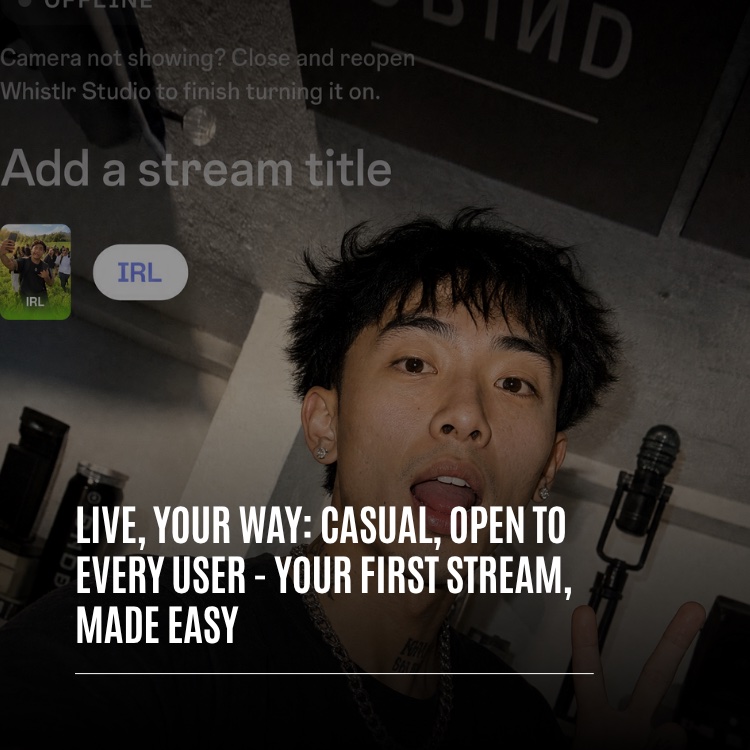
Product · October 21, 2026 · 14 min read
How to Go Live on Whistlr: A First Broadcast Guide for Brands and Creators
Go live on Whistlr from your phone or OBS Studio with no follower minimum. Set up titles, tags and guests, then earn with Gems and Live Shopping when ready.
You can go live on Whistlr today with nothing more than the phone in your pocket. Broadcasting is available to every account: you do not need a minimum number of followers, you do not apply, and you do not have to switch account types first. For a shop, a studio, a service business, or a creator building something of their own, that makes live one of the most direct ways to show people what you do as it happens. This guide covers the full first-broadcast path: what to prepare, how to start from a phone or from OBS Studio, how to describe your stream so the right people find it, the tools you can use on air, how to protect your space, and how a single stream keeps working for you after it ends.
The setup is deliberately light. Starting a broadcast should feel easier than drafting a caption, and every tool you touch on day one is the same one you will lean on if live becomes a weekly part of how you sell, teach, or build community.
Why Live Is the Easiest Way to Meet Your Audience
Most marketing asks people to imagine your product or service. A live stream lets them watch it. A bakery can pull a tray out of the oven, a stylist can talk through a cut, and a maker can show the step that takes the longest. People can ask questions and get answers in the moment, which builds the kind of trust a polished post rarely earns on its own.
Whistlr also lowers the barrier to starting. You will find LIVE in the Create menu, sitting alongside posts, stories, and Minis. Selecting it takes you to the stage, which is the same simple screen every streamer on Whistlr uses, and your camera feed is already showing behind it. Because Whistlr leads with friends when it shows content, the first people to drop into your stream tend to be people who know you or your business already. That makes a first broadcast feel less like a launch event and more like opening the shop door and saying hello.
Casual Streams Still Count
Nobody expects a studio production. Ten minutes answering questions while you pack orders is a stream. So is a walk through a market where you source ingredients, or an evening chat with regulars. Start casual, learn what your audience responds to, and add structure only when it helps.
Stream Ideas for Businesses and Creators
If you are not sure what to show, start with the parts of your work people rarely see. A few formats suit almost any business:
- Behind the counter: Opening up, prepping, packing orders, or setting up a display.
- Product walk-throughs: One item at a time, with time for questions about size, fit, use, or care.
- How it is made: The process behind a dish, a print, a garment, or a finished piece.
- Open Q&A: A set time each week where customers know they can ask anything.
- On location: A market, a pop-up, a supplier visit, or an event you are part of.
Each of these works on a phone with no extra gear, and each gives viewers a reason to come back for the next one.
Before You Go Live on Whistlr: A Short Checklist
The requirements fit on a sticky note. Make sure these four things are sorted before your first broadcast.
- Your regular account: Streaming is not gated behind follower counts or a creator program, so the account you already use is enough.
- Camera and mic permissions: The app requests both when you first open the stage. If you said no earlier, a Camera access card appears on the stage with a shortcut into Settings to fix it.
- A title: Broadcasts cannot start untitled. Tap Start without one and the stream info editor pops up so you can fill it in.
- A reliable signal: Good Wi-Fi or solid cellular coverage keeps the picture smooth. Nothing fancy is needed, but stability makes a better first impression on new viewers.
Lights, a separate mic, and broadcasting software are all optional extras for later. If you want an overview of everything live can do before you start, our live streaming hub is a good primer.
How to Go Live on Whistlr From Your Phone
These steps take you from a closed app to a live broadcast. Expect a couple of minutes the first time and only seconds once you know the flow.
- Start from Create. Hit the Create button, slide over to LIVE, and tap to bring up the stage.
- Grant permissions. On a first stream, approve camera and microphone access. The preview then fills the background.
- Keep Stream Mobile selected. The stage offers a toggle between Stream Mobile and Stream Desktop. Phone broadcasts use Stream Mobile.
- Name the stream. Tap the title field and say what is happening. You have 140 characters to work with.
- Set a category. Phone streams default to IRL. Browse or search to change it, with options such as Just Chatting, Music, Art, Fitness & Health, Food & Drink, and Travel & Outdoors among many others.
- Fill in extras if you want. Tags, language, content labels, and a follower notification can all be skipped. Each is explained below.
- Press Start. Whistlr secures the room and your broadcast begins.
To wrap up, use the live controls to end the broadcast. A confirmation step stands between you and the end of the stream, so a stray tap will not cut you off in the middle of a sale or a demo.
Writing Stream Info That Brings the Right Viewers
All the details that describe your broadcast live in the stream info editor. The title is the only required field, yet a little extra effort here decides which viewers discover you and whether the stream matches what they expected. Before going live, tap the title or category on the stage to open it.
Title: Up to 140 Characters
Viewers read the title before anything else and make up their minds almost instantly. Describe what is happening right now in plain language. "Unboxing this week's new arrivals," "Q&A on caring for houseplants," and "Live from our pop-up, come say hi" each tell the right viewer exactly what they will get. Clear always beats clever.
Category: Put the Stream Where It Belongs
Viewers browse live streams by category, so this choice decides which shelf you sit on. The editor lists popular categories with artwork and includes search for niche ones. Camera streams start on IRL, a catch-all for everyday life. Whistlr's guidelines ask that every stream be categorized accurately, so pick the one that truly reflects the content. A cooking demo belongs in Food & Drink, a workout class in Fitness & Health.
Tags: Up to 10 Keywords
Tags fill in what a category leaves out. A stream can hold 10 of them, each capped at 25 characters, and they cannot contain spaces or special characters. A language tag is added for you, and the rest are yours to choose, such as your city, your niche, a skill level, or the style of the stream. For a local business, a city tag is one of the simplest ways to reach nearby viewers who share your interests without needing a large following first.
Content Classification and Language
Streams with content that some viewers should avoid must be labeled. Under Content Classification you can flag things like mature-rated games, heavy profanity, gambling, or political and sensitive social topics. A language setting lets viewers find broadcasts in a language they understand. Most business streams will not need any labels, but it is worth knowing where they live.
Go Live Notification: One Message, Make It Count
When you start, you can ping your followers with a note of up to 140 characters. Each stream allows just one, so make it specific. "Restocking the bestseller live, ask me anything about sizing" gives people a reason to drop in, while a generic "I'm live" gives them very little.
The best stream titles and notifications answer one question for a passing viewer: what will I get if I tap in right now?
Broadcasting From a Computer With OBS Studio
If you already have a desk setup, or want a multi-camera view of a workshop or counter, flip the stage toggle to Stream Desktop. This mode links a computer to your Whistlr account and supports OBS Studio along with any other broadcasting app that speaks RTMP. On the stage you will find a Server URL, a Stream Key, and short setup instructions.
- Launch your broadcasting app. OBS Studio works, as does any RTMP-capable tool you already know.
- Pick Custom as the service. You will find this in the app's stream settings.
- Enter both values. Paste the Server URL and Stream Key from the stage. Grab the key in full, because even one missing character blocks the signal.
- Begin streaming from the app. Once Whistlr detects the feed, a preview appears. If it looks good, confirm with the "I'm set up, let's go" button.
The Signal Coach Explains What It Sees
During setup, a signal coach keeps you posted in everyday language, first while it waits for your feed and then once the signal arrives. When video arrives that the preview cannot decode, it suggests switching your encoder to H.264 using the Main or Baseline profile. And if your software drops out mid-broadcast, your Whistlr stream stays up while you restart the feed from your app.
Keep Your Stream Key Private
Anyone holding your stream key could broadcast to your account, so protect it like a password and keep it out of screenshots and chats. If it ever gets out, generate a new one in the Stream key panel, and the old key is disabled.
Running the Room: Tools You Can Use on Air
Every on-air control shares a single screen. There is no need to learn them all before going live. Most hosts begin by chatting and pick up the rest as they go.
Comments, Pins, and Hearts
The chat runs across your video as people type, and you will see viewers as they arrive. Answer people by name, and pin a message so it stays visible above the flow, such as today's featured item or a question for the audience. Viewers can tap to send likes, which rise up the screen as hearts, a handy way to gauge the mood when the chat is quiet.
Questions and Polls
Questions keep viewer asks from scrolling away in a lively chat. They gather in a private list visible only to the host, and you can pull any one onto the screen and respond out loud. Polls hand a decision to the audience, such as which product to demo next or which color to restock, and every viewer gets a vote. Both help on a first stream, since they hand you a talking point whenever the conversation dips.
Guests on Screen
Viewers can ask to join your broadcast, and you can bring in anyone currently watching or anyone you follow. As many as eight guests can share the screen with you, so a stream can be a one-on-one interview with a supplier, a panel with partner businesses, or a customer spotlight. You approve every guest, can take anyone off screen whenever you choose, and can switch requests off completely.
Share a Photo
When you need to show something the camera cannot capture, share a photo from your library. Viewers see it alongside you in a small window, which works well for a product shot, a price list, a before-and-after, or a sketch of something you are making.
Stepping Away
Switching out of the Whistlr app mid-stream pauses your camera, and viewers see a Live video paused notice until you are back. The stream stays up, and your audience knows you have not left for good.
On a phone stream, you can also switch between front and rear cameras mid-broadcast and add effects, which makes it easy to turn from talking to camera to showing the product in your hands.
Protecting Your Brand While You're Live
Going live in public can feel exposed, and a business has its reputation to think about. Whistlr gives every host real control from the very first stream, regardless of audience size, and you can set most of it up before you start.
- Hidden words: List words or phrases you do not want on screen, and any comment that uses them is hidden from the whole audience.
- Mute a person: Silence a single viewer's comments until the stream ends.
- Commenting off: Switch the chat off for a calmer broadcast and back on whenever you like.
- Moderators: Give a teammate or friend moderator status so they can clean up the chat and handle problem viewers while you stay on camera.
- Remove and block: Kick someone out of the stream on the spot, or block them so your profile, posts, and live videos are off limits to them.
Setting a short list of hidden words before you start means you never have to deal with it mid-demo. For broader account protection beyond live, see our guide to protecting your account.
After the Broadcast: Turning Replays Into Lasting Content
A stream keeps working after you stop. Ending it brings up a summary with the length of your broadcast and the most viewers you had at once, an honest snapshot of how it went.
- Automatic replay: A replay is posted to your profile for anyone who could not make it live, and you can remove that post whenever you want.
- Download: Save a copy to Photos on your phone so you can archive it, edit highlights, or cut short clips.
- Share: Send the replay to people or share it directly from the summary screen to reach those who were not there.
- Very short streams: Broadcasts below a minimum length are not saved, so a mistaken start stays off your profile.
For a business, the replay is often the most valuable part of a small first stream. A product demo watched live by a handful of people becomes a post that can be found long afterward, and the best moments can be trimmed into Minis that carry the stream to a wider audience.
Live Havens: Bringing Nearby Customers to Your Stream
Broadcasting from a pop-up, a game, a local event, or anywhere else worth visiting? Pin the live stream as a Live Haven at the spot where you are. While you are on air it shows up on Nearby, and it disappears when the stream ends, letting people in the area see what is going on and join.
For storefronts and event-based businesses, this is one of the simplest ways to connect online attention with a physical place. A stream from your booth or counter can draw in people who are close enough to stop by, and the stream itself gives them a preview of what they will find.
Earning From Live: Gems and Live Shopping
Broadcasting costs nothing, for anyone. Making money from it is optional and comes later, when you choose. WTC Gems and Live Shopping become available once you finish verification and Stripe Connect onboarding, which is the same process behind every earning feature on Whistlr. Our verification guide walks through that first step.
Gems and Goals
After setup, your viewers can gift Gems while you are live. A Gems goal shows your audience a target that fills as gifts arrive, and a top gifters list shows who has given the most. Read more in our guide to earning with Gems.
Live Shopping for Verified Businesses
Verified business hosts can feature an item from their Whistlr GO store on screen, so viewers can buy it while the stream keeps running. That turns a demo into a storefront: you show the item, answer questions about it, and the product is right there for anyone ready to buy. Our Live Shopping guide covers how to plan a selling stream.
None of this has to be switched on for your first broadcast. Plenty of businesses start by simply hanging out with their regulars, then add earning tools once live feels natural.
A First-Stream Plan for Businesses
Polish is optional. What matters is showing up ready enough to relax. Follow these steps to keep the first one simple.
- Choose a single focus. One product, one process, or one topic. Keeping your hands busy means you are not carrying the conversation alone.
- Give advance notice. Post a story or short update with your start time, and fire off the follower notification when you begin.
- Be specific in the title and tags. Name exactly what is happening and add a city or niche tag.
- Set safety controls first. Add hidden words and, if a teammate is available, make them a moderator.
- Test the picture and audio. Put a window or lamp in front of you, and keep the phone near enough that your voice carries.
- Welcome each arrival. A quick hello to every new name in the chat is the simplest way to make a small audience feel at home.
- Keep a question or poll ready. If the conversation stalls, ask viewers to choose something or answer a question from the list.
- Use the replay. Share it afterward and save the best moment for a short clip.
Finally, judge the first stream by how it felt rather than by the count. A handful of viewers who stay the whole time is a strong start, and the habits you build in that first session carry into every stream that follows.
Frequently Asked Questions
Who can go live on Whistlr?
Any Whistlr account can broadcast. You do not need a set number of followers or a creator application. Go to Create, pick LIVE, give the stream a title, and press Start.
Do I need special equipment to stream on Whistlr?
No. Stream Mobile runs entirely on your phone's built-in camera and mic, with controls layered over the video. For a computer-based setup, Stream Desktop supports OBS Studio and other RTMP apps.
How do I connect OBS Studio to Whistlr?
Switch the stage to Stream Desktop, then copy the Server URL and Stream Key into OBS Studio with the service set to Custom. Start streaming, wait for the signal coach to confirm the feed, and tap the I'm set up, let's go button.
How many tags and characters can a Whistlr stream have?
Titles are required and max out at 140 characters. Tags are limited to 10 per stream, 25 characters each, with no spaces or special characters. The single follower notification per stream also allows 140 characters.
What happens to a Whistlr live stream after it ends?
You see a summary with your broadcast length and peak viewer count. A replay posts to your profile on its own, and you can download it to Photos, share it, or delete it. Streams that are too short are not saved.
How can a business earn from live streams on Whistlr?
Finish verification and Stripe Connect onboarding first. Viewers can then gift WTC Gems while you are live and you can display a Gems goal, and verified business hosts can feature Whistlr GO products through Live Shopping. Broadcasting itself never costs anything.
Your first broadcast does not need a studio or a big audience. It needs a clear title, a single focus, and a willingness to say hello. Head to Create in the app, pick LIVE, and show the people who already like what you do how it all comes together.