Product · October 21, 2026 · 14 min read
A Banner-Free Whistlr Profile That Introduces Your Brand in Seconds
Whistlr profile customization, explained: the banner-free layout, category line, Blips, Halos, badges, tab toggles and Store tab, plus a setup guide for brands.
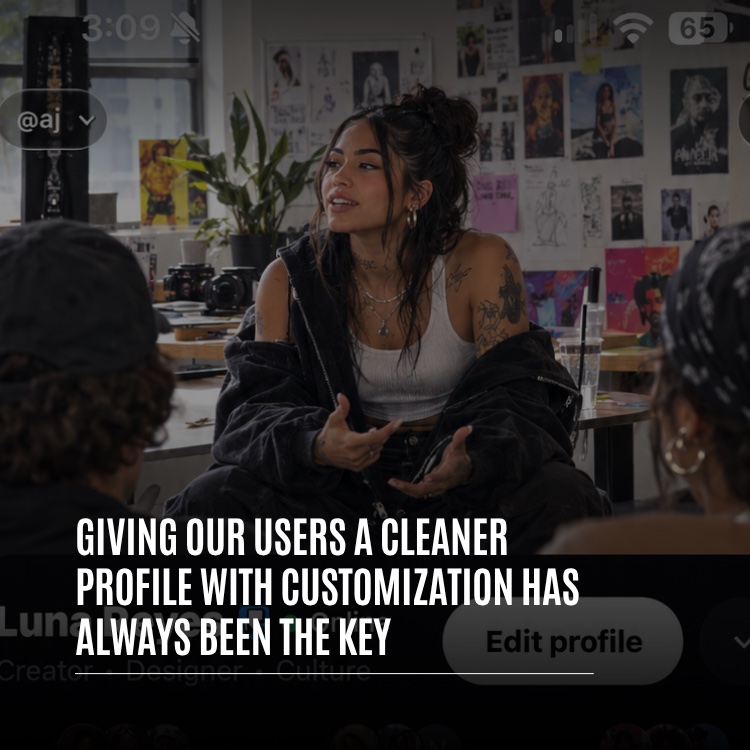
Whistlr profile customization now starts from a cleaner page. The newest layout drops the banner, opens with your name and picture, adds one category label that explains what you do, and places your profile song next to your Mood. Underneath, the creative options have grown: animated Blips, Halo frames around your picture, flag and online badges, a Top 8, tabs with new names and icons, and switches that control which of those tabs show up. For a creator, a storefront or a growing brand, your profile is often the first page a potential customer sees after discovering you. This guide explains what changed, how each customization option works, what the update means for business accounts, and how to set up a profile that is both easy to read and clearly yours.
What Changed on the Whistlr Profile, in Short
Earlier this year, Whistlr already tidied profiles by cutting duplicate icons, merging counters that said the same thing and leaving more room for personal touches. That first round was about taking things away. This one goes deeper and reworks how the page is put together: the order of the top section, the names of the tabs and the place where you make changes. If you only have a minute, here are the headline changes:
- No more banner: the left side holds your name, while a bigger version of your picture sits on the right.
- A category line: one label, such as Musician, Photographer or Designer, appears directly under your name.
- One quiet stats line: posts, peers and friends, shown as context rather than a scoreboard.
- Song and Mood together: what you are listening to and how you feel now appear on the same line.
- Renamed tabs with custom icons: photos and videos are now grouped as Lore, written posts sit under Notes, and some tabs stay hidden until there is content for them.
- Customization in one place: Edit profile and the Customize sheet hold the expressive options, so they do not clutter the page itself.
The principle behind all of it is simple. The truly personal pieces, meaning your picture, name, category, Mood, song and the people you feature, each get an obvious spot. Anything secondary sits a single tap further in.
Readable at a glance, personal on a closer look. That is the balance a good profile has to strike.
First Impressions: Name, Category and Photo at the Top
The top of a profile is the most valuable space on a phone screen, and the update gives that space to you rather than to a background image. For a business, this is where a visitor decides whether to follow, browse or leave, so it is worth understanding exactly what appears there.
Your Name and Category Line
First comes your display name, followed by a verification badge for accounts that have one. The line below holds your category. Once you pick a category, it appears in the spot your @handle used to occupy, so visitors learn what you do before they learn your username. For a brand, that one word or phrase does the job a tagline used to do. If you are working toward a badge, see getting verified.
A Bigger Photo That Does More
Your picture on the right is now larger, and it does more work. A Blip, if you have one, plays in that spot. A Halo, if you have chosen one, surrounds it. When you are broadcasting or have a fresh Story, a tap on the picture opens it directly, which makes your photo a path into whatever you are doing right now.
Why the Banner Was Retired
Plenty of people enjoyed decorating the top of their page with a picture or clip, and the old banner did set a nice atmosphere. The trouble was that it shoved your most personal details lower on the screen and fought with your picture, Halo and Blip for the eye. Removing it returns that space to the elements that actually identify you.
Your picture continues to carry the mood as visitors move around. Once someone scrolls far enough for the header to pin itself to the top, your profile picture fills in behind it, so the page still feels like yours while people flick between tabs. Meanwhile the Banners entry in Edit profile has been given a fresh role as the place to set your profile music.
Posts, Peers and Friends
The counts are now a single low-key line beneath your name showing posts, peers and friends. Peers lists your followers, and friends lists the accounts you follow, a naming choice that mirrors how Whistlr frames connections. The numbers are there as background rather than a ranking. For a newer business, that framing is a relief. Visitors notice what you make before they notice how many people are watching.
The Rows That Turn Visitors Into Followers and Customers
Beneath the top section sits a short stack of rows. None of them shows up until you add something to it, which keeps a sparse page looking deliberate instead of half-built.
- Share a thought: a button on your own page for posting a Thought, the brief status bubble shown over your avatar, right where you are.
- New story: when you have shared a Story within the past hour, a small note shows how long ago that was.
- Bio: 150 characters to describe yourself. If yours is blank, your own view shows a "+ Add bio" prompt.
- Links and location: these now run together on a single tidy line rather than taking up a row each.
- Song and Mood: placed next to each other, so someone landing on your page hears your taste and reads your state of mind together.
- Relationship status: shown here once both people have confirmed it.
- Contact options: on a business account, a phone or email chip lets customers get in touch in one tap.
Three buttons follow: Edit profile, Account center, and a circular More profile options button. The circular one is a gateway to the rest of your tools, such as Share profile, Communities, Close friends, Bookmarks, your Archive, hashtag favorites, relationship status and your profile track. After those comes Top 8 Friends, provided you have switched that section on.
For a business, the order of these rows maps neatly onto how a visitor makes a decision. The bio explains your offer, the links send people to the next step, the location tells local shoppers you are nearby, and the contact chip removes the last bit of friction for someone ready to get in touch.
Profile Tabs With New Names and Icons
Profile tabs now carry names and artwork with more of a Whistlr personality. The tab for photos and video has become Lore, since that visual record is your story. Written posts are collected in Notes. Each tab also got its own symbol: Waves shows an old-school music player, Wall a signature, Havens a treasure map, Highlights a strip of film, Lore a spiral and Notes a deck of cards.
- Tagged: content where someone has tagged you.
- Wall: messages your friends have posted to your page.
- Waves: music, available once you have a profile flow.
- Store: a verified business's Storefront, if the owner opts to display it.
- Havens: location-based communities you have joined, if that tab is switched on.
- Activity: an overview of your recent actions on Whistlr.
- Highlights: Story highlights you have saved, visible once some exist and the tab is enabled.
- Replies: responses you have left on other accounts' posts.
- Notes: text posts only, with any pinned Notes at the top.
- Lore: everything you have shared as a photo or video.
Several tabs are conditional on purpose. Without Story highlights, there is no empty Highlights tab on your page. If you would rather not show your Havens, switch that tab off. Fewer tabs mean a cleaner page, and you decide which ones earn their place. Other people's profiles use the identical arrangement, so learning your own page means you can find your way around anyone's.
For a business, the renamed tabs line up well with how customers browse. Lore becomes your visual catalog of photos and videos. Notes holds written updates, announcements and a pinned introduction. Store, for verified business accounts that switch it on, sits alongside them so products are one tap from your content. And Tagged gathers posts you have been tagged in, which often means customers showing off what they bought from you. Deciding which of these to keep visible is one of the easiest ways to shape what a first-time visitor sees.
Whistlr Profile Customization, Field by Field
Every change begins with the Edit profile button, which opens a screen split into several blocks. Its top button switches between Close, when nothing has changed, and Save, when something has. Try to back out with edits still pending and Whistlr gives you three choices: discard them, save them or go back to editing.
Picture, Blip and Halo
Under your picture, Edit picture offers three choices. Photo is a standard still. Blip swaps the still for a looping clip no longer than 20 seconds. Add Halo wraps a decorative frame around the image. A cropper that lets you drag and resize makes sure your face or logo sits in the middle with nothing important trimmed away. To see how creators are using frames, read about the growing popularity of Halo.
Name, Username, Pronouns, Bio and Links
Block one handles the essentials. Display names max out at 50 characters. Usernames need a minimum of three characters drawn from letters, numbers and underscores, and availability is checked as you type. Pronouns get 30 characters, the bio gets 150, and three link slots are available.
Category, Location and Personal Details
Block two is where things get personal. Pick your category from a list of several hundred labels, and clear it again whenever you want. This block also holds Mood, relationship status, birthday, gender and location. The Mood picker includes a search field and more than 200 choices, so the right one is easy to find.
Music on Your Profile
The row that once controlled banners now reads "Add music to your profile." and is where your profile song gets picked. Because the song displays beside your Mood, people pick up your personality the moment they open your page. Swap it whenever you like, and find it again later under More profile options, in Manage profile track.
Badges and Business Options
Block three is all about badges. With the Country badge, your national flag appears next to your name. iOS users can also change their online badge, the marker that tells people you are active. Accounts that qualify can attach an affiliation badge, and business accounts will see Subscription Vault and Tips settings in this same block.
Section Toggles
- Show Store tab: lets a verified business decide whether its Storefront gets a tab.
- Havens tab: displays or conceals the Havens you are a member of.
- Highlights tab: puts your saved Story highlights on your page whenever any exist.
- Top 8 Friends: spotlights a hand-picked group of eight friends.
The Customize Sheet
Customize profile, found at the foot of Edit profile, brings up a panel called "Customize" that carries the line "Make your profile feel like you." It bundles the most visual settings together: Badge for the online indicator, Blip for a moving picture, Halo for the frame, and Edit for your name, bio and other details. When you just want a quick refresh, it saves scrolling through the full editor.
Character Limits and Numbers to Plan Around
Drafting your bio and details before you open Edit profile saves time, especially if several people on a team need to sign off on the wording. These are the limits to plan around:
- Bio: 150 characters maximum.
- Display name: between one and 50 characters.
- Pronouns: 30 characters maximum.
- Username: three or more characters; letters, numbers and underscores are allowed.
- Links: three at most.
- Blip: a loop no longer than 20 seconds.
- Top 8: eight friends on display.
- Category: a single label beneath your name.
- Account switcher: room for four accounts.
What the Update Means for Business Accounts and Storefronts
Every change in this update applies to every profile, but a few of them matter more when your profile is also your shop window.
- Your category is your positioning. A clear label under your name tells a visitor what you sell or make before they read anything else, which frees your 150-character bio for your offer and personality.
- Contact chips shorten the path to a sale. An email or phone chip lets a ready customer reach you without hunting through links.
- The Store tab is your choice. Verified business accounts decide whether their Storefront appears as a profile tab, so you can surface products when you are selling and keep the page lighter when you are not.
- Earning options sit in Edit profile. Tips and Subscription Vault settings live in the badges block, alongside the rest of your profile setup. Learn more about tips and subscriptions.
- Pinned Notes give you room to explain. Pinning a Note keeps it first in your Notes tab, which makes it a natural home for a longer introduction, a current offer or answers to common customer questions.
- Your photo is your logo slot. With no banner, your photo or Blip carries the visual identity of your page, so choose one that reads clearly at a small size.
Running Several Accounts
Many founders and creators keep a personal page alongside a business or creative one. The account switcher opens when you tap the pill showing your @username at the top of your page. It holds as many as four Whistlr accounts, lets you hop from one to another instantly, and connects to Accounts Center for management. Because each account has its own separate profile, your personal page and your brand page can each be styled for its own audience.
Sharing Your Profile Anywhere
Share profile, inside More profile options, produces a designed QR code for people to scan, along with Copy Link and Share Profile buttons for passing your page around. A printed QR code at a market stall, on packaging or beside a register is an easy way to turn in-person customers into followers.
Staying in Control of What Your Profile Reveals
A tidier page only helps if you still decide what it exposes. Every personal element in the new design is optional. Leave category, Top 8, Mood, song or relationship status empty and those parts of the page never appear.
To limit your posts to people you know, switch on Private account under privacy settings. On a private account, nobody can view your posts or friend you until you approve them. Separate settings decide whether others see your last seen time and activity status, and whether your account shows up when Whistlr suggests similar accounts. The secret answer that helps protect your account is permanently visible to Only me. A practical setup for many business owners is a public brand account with a private personal account alongside it, both managed through the account switcher. For more on account safety, see protecting your account.
Setting Up Your Whistlr Profile Step by Step
Here is a simple path from a blank page to a finished profile. Most people can work through it in one sitting.
- Start with the image. In Edit profile, open Edit picture and either choose a photo or film a Blip, then drag the cropper until your face or logo sits in the middle.
- Add a Halo. Pick a frame that fits your style or brand.
- Pick a category. Go with the label that sums you up best; it will sit right beneath your name.
- Draft the bio. In 150 characters, explain what you offer and what visitors will find on your page.
- Add links and location. Up to three links and your location, shown together on one line.
- Set the soundtrack and Mood. Choose a track from the Banners row and a Mood, and the two will line up on the same row.
- Badge up. Turn on your flag with the Country badge and adjust your online badge if you want.
- Decide on tabs and Top 8. Switch Top 8, Highlights, Havens and, for verified businesses, the Store tab on or off.
- Save and check. Look at the finished page, then send it out by link or QR code.
Habits for Keeping a Profile Sharp
A profile is never quite finished. These habits keep it working for you long after setup:
- Let your category introduce you, and spend your bio on personality and your offer instead of a job title.
- Keep Blips short and loopable. A few seconds of smooth motion, like a wave, a laugh or a product turning toward the camera, works best.
- Pair your song with your Mood. They share a row now, so a combination that fits says a lot in one glance.
- Trim unused tabs. Each tab you switch off makes the page simpler and gets visitors to your best content sooner.
- Change things up occasionally. A new Mood, song or Halo every so often gives repeat visitors something fresh.
- Be deliberate with Top 8. Visitors pay attention to who you feature, and it is among the most personal sections you have.
For more ideas on turning profile visits into lasting relationships, explore our guide to growing on Whistlr.
Frequently Asked Questions
What happened to the banner on Whistlr profiles?
It was retired so that your name and picture lead the page. The banner had been pushing personal information lower on the screen and pulling attention away from your picture, Halo and Blip. These days, once the header pins itself while someone scrolls, your picture fills in behind it.
Where do I change my Whistlr profile settings?
Everything starts from the Edit profile button. From that screen you can update your picture, Blip and Halo; your display name, username, pronouns, bio and links; your category, Mood, location and profile song; and your badges. It also has switches for sections such as Top 8, Havens and Highlights, while Customize profile gives a shortcut to Halo, Blip and badge changes.
What does the label under my name on Whistlr mean?
That is your category, one label like Photographer or Musician picked from several hundred choices in Edit profile. It sits right below your name, in the place your @handle used to appear, and you can swap or clear it at any time.
What is a Blip on a Whistlr profile?
A Blip is a looping clip of no more than 20 seconds that replaces a static profile picture. To set one, go to Edit profile, tap Edit picture, pick Blip and adjust the framing with the cropper.
Can business accounts show a store and contact details on their profile?
Yes. A business profile can carry a phone or email chip that lets shoppers contact you directly, and a verified business decides for itself whether to display its Storefront in a Store tab. Business accounts also find Subscription Vault and Tips settings inside Edit profile.
How many Whistlr accounts can I switch between?
The account switcher holds four Whistlr accounts. Tap the pill with your @username at the top of your page to change accounts, add another one or go to Accounts Center.
Your profile is the first impression your brand makes on Whistlr, and now it can be clean and personal at the same time. Open your profile, tap Edit profile, and build a page that tells every visitor who you are in seconds.