Product · October 21, 2026 · 14 min read
Audio Rooms, Chat Themes and Bubble Skins: Whistlr Messaging for Brands and Creators
Whistlr audio rooms bring live group voice calls into any chat, plus 117 shared themes, bubble skins and alert tones. How brands and creators can use them.
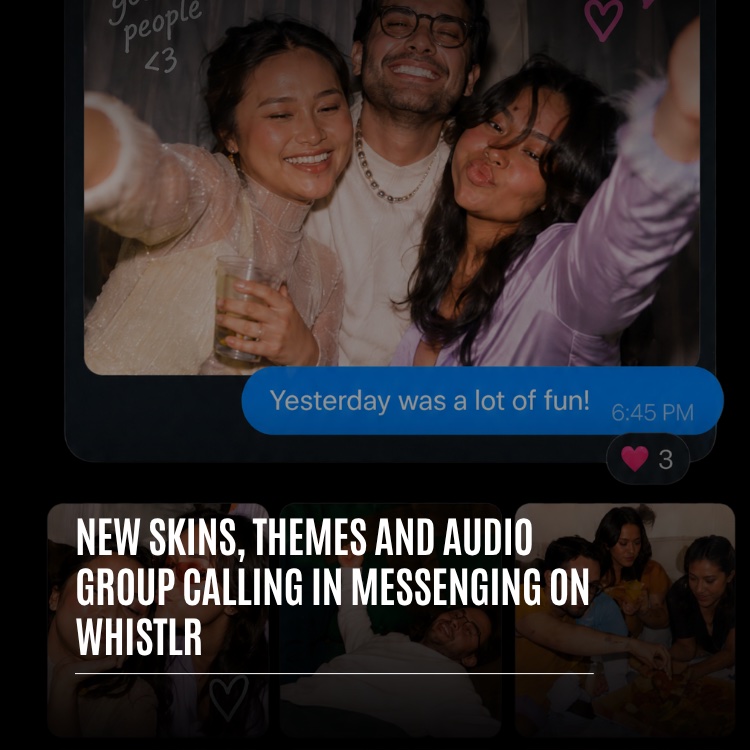
Whistlr audio rooms let you turn a group chat or a one-on-one thread into a live voice conversation with a single tap, and they shipped together with three other messaging upgrades: 117 chat themes that a whole conversation shares, bubble skins that personalize the messages you send, and a choice of alert tone for each thread. For brands, store teams and creators who treat Whistlr as a business, this is more than decoration. You can tell busy threads apart instantly, know which one is pinging you without unlocking your phone, and pull your team or inner circle into a quick call without moving to another app. Here is how each piece works and how to use it well.
Why Messaging Matters When You Run Whistlr as a Business
The public side of your work on Whistlr is easy to see: Minis, Stories, live streams and your storefront. Much of what makes that work possible happens out of sight, in private threads. That is where a product drop gets planned with a collaborator, where the run of show for a stream gets agreed, where a buyer asks a question, and where a small team stays coordinated.
When every one of those threads looks identical, mistakes creep in. You reply in the wrong place, open the wrong conversation, or overlook the single message that needed you today. This update lets each thread carry its own appearance, its own sound and its own rules about interruptions, and it adds live voice for the moments when typing slows everyone down. You do not need a business account for any of it. These are standard messaging features, so every person on your team has them already.
The Update at a Glance
Here is everything that changed, before we look at each feature in turn.
- Chat themes: 117 options grouped into Colors, Gradients and Wallpapers. You pick one for a conversation, and every participant sees it.
- Chat bubble skins: over 30 decorative styles in five collections, chosen individually for the messages you send in each thread.
- Alert tones: a distinct notification sound per conversation, so you can recognize the sender by ear.
- Audio rooms: live voice inside group and one-on-one threads. Starting a room rings the other members, and joining takes one tap.
- Mute calls: a switch in each thread that silences room rings while leaving its message notifications alone.
What ties these together is control at the level of one conversation. Rather than a single app-wide setting, you choose how each thread looks, sounds and competes for your attention.
Whistlr Chat Themes: Colors, Gradients and Wallpapers
A theme restyles a whole conversation, and each thread on the app can carry a different one. For teams, the key point is that themes are shared: all participants see the same look, which turns a theme into a visual label the group agrees on.
Colors
Seventeen solid colors are available, with Classic Blue as the starting point for every new thread. The color fills the bubbles and lightly tints the background behind them. Alongside Classic Blue you can choose Amber, Black, Cyan, Emerald, Green, Indigo, Lime, Orange, Pink, Purple, Red, Rose, Slate, Teal, Violet or Yellow. For working threads, solid colors tend to be the most useful: they are easy to spot in your list and stay quiet while you read.
Gradients
Sixteen gradients mix two or more colors for a deeper effect, again showing in the bubbles with a gentle wash behind them. The set is Aurora, Berry, Cherry, Cosmic, Cotton Candy, Fire, Lavender, Mint, Neon, Ocean, Peachy, Royal, Sunset, Throwback, Tropical and Velvet.
Wallpapers
The other 84 themes are photographic. A wallpaper fills the entire background with an image and adds a darkening layer so text stays legible. Your outgoing messages hold on to the familiar Whistlr blue when a wallpaper is active, which keeps them easy to pick out on busy photos. The library ranges across skylines, mountains, forests, oceans, deserts and night skies. A handful of examples, in alphabetical order, gives a sense of the range: Amalfi Coast, Deep Space, Golden Hour, Grand Canyon, Milky Way, Misty Forest, Northern Lights, Rainy Window, Redwoods, Santorini, Storm Clouds and Tokyo Neon. City fans will also find London, Paris, Hong Kong, Seattle, San Francisco and several takes on New York.
Why Shared Themes Work Well for Teams
Since the theme is attached to the thread rather than to an individual, whoever changes it changes it for all. Whistlr then drops a short notice into the conversation naming the person and the new theme. Nobody is left wondering why a familiar thread suddenly looks different, and the change is on record.
In a group, every member has the power to switch themes. The feature is meant to be a light, shared part of the group, not a locked admin setting. For a business, that makes it a convention rather than a policy. If the team agrees that launch planning lives in Orange and customer feedback lives in Teal, anyone can hold that line, and the notice shows who moved it if it drifts.
A shared theme is the cheapest organizing system a team can adopt: one color per job, visible to everyone, set in seconds.
Setting a Chat Theme Step by Step
The process takes under a minute and is identical for group threads and one-on-one threads.
- Go to the thread you want to restyle.
- Bring up its info screen. Use the details icon at the top of the conversation, or swipe the thread to the left.
- Find the palette. It sits in the upper right corner of the info screen and is labeled Theme.
- Browse the tabs. A panel rises with Colors, Gradients and Wallpapers along the top and a live sample conversation underneath.
- Try options freely. Each tap refreshes the sample immediately, so you can judge the bubbles and background before deciding.
- Confirm with Save. The new look applies for every participant, and a notice about the change appears in the thread.
Choosing Classic Blue and saving puts any thread back to its original appearance.
Bubble Skins: Your Personal Signature in Every Thread
If themes belong to the conversation, skins belong to the individual. A skin dresses up the bubbles around your own outgoing messages, and the other participants see that styling too. In a lively group, that often lets you identify a speaker from the bubble before you even reach the name.
The choice is made per person and per thread. A whimsical skin might suit a brainstorming thread with collaborators, a sports skin might fit a fan community, and a plain bubble might be right for a thread with a supplier or a first-time buyer. Whatever you choose stays inside that one conversation and never carries over to others.
The Five Collections
More than 30 decorated skins are spread across five groups, listed here alphabetically within each:
- For her: Butterfly garden, Coquette bow, Lip gloss, Strawberry milk and Tiara.
- For him: Camo ops, Drip, Iron gym, Shark bite and Sneakerhead.
- Gaming: Cosmic arcade, Dragon loot, Game on, Neon arena and Pixel quest.
- Sports: Golden goal, Gridiron, Hoops, Match point and Pit stop.
- Suggested: Bubbly otter, Bunny cloud, Chill croc, Cozy capy, Flexing cat, Frog duck, Froggy, Glam diva, Kitty & pup, Petal pink and Sunny sponge.
Prefer something understated? The Default style is a clean bubble with no decoration that simply takes the thread's theme color. Plain Blue and plain Purple bubbles are options as well, and just like the decorated skins, they are what the other person sees on your messages.
How to Pick a Skin
- Open the thread's info screen using the details icon or a swipe to the left.
- Among the settings rows, select Chat bubble.
- Scroll through the five collections until something fits.
- Tap a style to apply it. From then on, the messages you send in that thread carry it for every participant.
Matching Skins to Your Brand Voice
For creators, a skin can extend your personality into private threads. A gaming creator planning with a co-host might reach for Pixel quest; a fitness coach might use Iron gym with a client group. A business account talking to customers usually reads better with something calmer, such as Default or a plain color, so attention stays on your words. The useful part is that you decide thread by thread, the same way you would shift tone between a team huddle and a note to a customer. Our best practices guide covers keeping that tone consistent across the rest of your Whistlr presence.
Per-Chat Alert Tones and Mute Controls
On the info screen, directly beneath the Chat bubble row, is a row called Alert tones. It lets each thread make its own sound, so your co-founder, your production crew and your closest collaborators can each be recognized from across a room.
The tone options, alphabetically, are Bounce, Business chimes, Cute voice, Default alert, Homely doorbell, Leaky tap, Singing, Spring days and Whistlr bells, and there is also a longer variant of Whistlr bells. Business chimes is a natural pick for a work thread, but the bigger win is restraint: give distinctive tones only to the few threads that truly need quick replies and leave everything else on the default.
Two Separate Mute Switches
Two toggles live in the same area, and they do different things:
- Mute messages quiets text notifications from the thread.
- Mute calls quiets only the rings from audio rooms started in the thread; text notifications keep working.
Splitting them is what makes the setup workable. A big community thread might open rooms frequently, and you may not want a ring every time. Turn on Mute calls and the rings stop, yet messages still reach you, and you remain free to hop into any room on your own terms.
A Simple Notification Plan
If you juggle several working threads, a quick plan cuts distraction:
- Choose your three most important threads and assign each its own tone.
- Keep every other thread on Default alert.
- Switch on Mute calls in large or very social groups so rooms do not break your focus.
- Use Mute messages sparingly, for threads you prefer to check on your own schedule.
Whistlr Audio Rooms: Group Voice Calls Inside the Chat
Some decisions simply go faster when people talk. Whistlr audio rooms put live voice inside your threads, so you can agree on a plan, rehearse a stream or work through a problem with the whole group at once. A room can begin in either a group thread or a one-on-one thread; when it does, the other members are rung, and a single tap brings each of them in.
Private by Design
A room exists only inside the thread where it began. There is no way to share it elsewhere, and it is never listed publicly, so membership in the thread is the only ticket in. Group threads on Whistlr can include as many as 100 people, which means one room can gather a sizable team, a set of collaborators or a tight-knit community into a single live conversation.
That privacy matters when you are choosing a format. A room is for people who are already in your thread. When you want to talk to a broad audience in real time, a live stream is the public tool built for that.
Why the Call Lives in the Chat
Group calling could have shipped as its own screen, complete with a separate contact picker and invitations. It lives inside the thread instead, because the group is already defined there. Membership is known, so setup disappears: no links to pass around, no selecting people one by one, no worrying that someone was forgotten. Everyone in the thread is rung.
Calls also leave a trail. A notice marks the start, a strip shows the room while it is running, and a recap row marks the finish, all woven into the same timeline as your messages. Scroll back later and you can see exactly when the group met, which is useful when a team wants proof a meeting happened.
How to Start an Audio Room
- Open the thread, whether it is a group or a one-on-one conversation.
- Tap the phone icon at the top of the conversation. Its label reads "Start or join audio room."
- Skim the first-time intro. A brief explainer appears the first time, covering live talk inside your thread, support for both thread types, and the ring that goes to every member. Choose "Start audio room" to go ahead, or "Not now" to cancel.
- Grant microphone permission if the app requests it.
- Go live. The room opens and a notice tells the thread you started it. Rooms in group threads take the group's name.
Only one room can run per thread. When a room is already underway, that same phone icon drops you into it instead of creating another, which keeps the group in one place.
Rings, Banners and the Live Bar
Starting a room rings the other members. People using the app at that moment see a banner slide down with the starter's name, a ringtone, and buttons to Join or Ignore. After 30 seconds the banner dismisses itself. People outside the app get a push notification instead; tapping it lands them in the room if it is still running, or in the thread with a note if the room has already closed.
Missing the ring costs nothing. As long as the room is running, a strip under the thread's title reads "Audio room" and shows a Join button, who opened it and the elapsed time. If you are already inside, the strip says so and offers a shortcut back. People you have blocked are never rung.
Running a Good Audio Room: Controls, Seats and Ending
Think of a room as a phone call rather than a stage with an audience. Anyone who joins has a seat and can speak, with no hand raising and no waiting to be brought up.
Joining Muted or Unmuted
To keep a large group from turning into instant noise, people entering a group-thread room arrive with their microphone off and switch it on when they want to talk. In a one-on-one room, you arrive with your microphone on, much like answering a regular call. For team calls, the muted start lets people slip in, catch up on the conversation and then speak.
The Controls You Will Use
- Mute and Unmute: a single button along the bottom edge of the room.
- Comments: a text field marked "Type..." for posting into the room silently. It is handy for sharing a link, a price or a product name mid-call, or for taking part from somewhere you cannot talk.
- People in the room: available from the More menu, showing who has joined.
- Minimize: swipe the room down into a small bar and carry on reading, replying or browsing other threads while still connected.
- Leave or End: participants may step out and come back through the thread for as long as the room runs, and the room's starter has the option to close it for all.
Ending a Room
When the person who opened the room walks out, the room closes for all, so the app asks that person to confirm first. Other participants can step away without closing anything and return while it is still running. After a room closes, a recap row in the thread shows its duration and the time it finished. For a team, those rows add up to a simple log of every huddle.
You can only be on one call at once. Opening a room ends any one-on-one call already in progress, so you never have two live conversations competing for your ears.
When a Room Is Not Available
- Message requests: a conversation that is still waiting in your requests has to be accepted first. If a new buyer reaches out for the first time, accept the request before suggesting a quick call.
- Blocking: rooms are off the table between you and anyone on either side of a block.
- No connection: starting or joining requires being online.
- Other conversation types: rooms are designed only for group threads and one-on-one threads.
Blocking is still your strongest response if a conversation turns hostile, and it covers rooms as well as messages. Our guide to protecting your account walks through the wider set of safety controls.
Practical Playbooks for Teams, Creators and Communities
Here are a few honest ways to put themes, skins, tones and rooms to work. None needs a new tool, only the features above used with some intent.
The Pre-Stream Huddle
Before going live, open a room in the thread you share with your co-host and moderators. Talk through the plan, drop key links or product names into the room's comment field, and close the room once everyone is set. The recap row confirms the huddle took place. If you sell during streams, pair this with your Live Shopping setup so the whole team walks into the stream with the same plan.
The Color-Coded Team Inbox
Assign each working thread a solid color tied to its job: one for product planning, one for content, one for operations. Because themes are shared, the entire team sees the same system. Then give a distinctive tone to the one or two threads that need fast replies.
The Close Community Chat
If you run a thread for your most engaged supporters or collaborators, let the group play with themes and skins. Any member can switch the theme, and that playful energy helps keep a community active. Turn on Mute calls for yourself if rooms pop up often, and drop in from the strip when you have a moment.
Quick Tips
- Theme by purpose so each thread stands out in your list.
- Keep your mic off while listening in big rooms.
- Minimize rather than leave when you need to check something mid-call.
Messaging is only part of the picture. For ideas on turning these conversations into content people want to watch, see our guide to creating engaging content.
Frequently Asked Questions
What are Whistlr audio rooms?
They are live voice conversations that run inside a Whistlr group thread or one-on-one thread. Anyone in the thread can open one with the phone icon at the top, the other members are rung, and joining takes a single tap. A thread can host only one room at a time.
Can people outside my chat join an audio room?
No. A room is tied to the thread where it started, cannot be shared elsewhere and is never listed publicly, so only that thread's members can get in. Group threads can include up to 100 people.
How many chat themes are there on Whistlr?
There are 117 in total, made up of 17 solid colors, 16 gradients and 84 photographic wallpapers, with Classic Blue as the default. Every participant in a thread sees the same theme, and a notice appears whenever someone switches it.
How is a chat theme different from a bubble skin?
A theme restyles the entire thread and is shared by all participants. A skin only decorates your own outgoing messages, though others see it too. Each person picks their own skin per thread, while the theme is one setting for the whole conversation.
How do I stop audio room rings without muting messages?
Turn on Mute calls from the thread's info screen. Rings from that thread stop while text notifications continue, and the strip under the thread's title still lets you join a running room whenever you like.
Why can't I start an audio room in a conversation?
Usually the thread is still sitting in your message requests, a block exists between you and the other person, or you are offline. Accept the request or reconnect and try again. Rooms only work in group and one-on-one threads.
The right messaging setup is the one that matches how you actually work. Give your key threads their own look and sound, choose a skin that suits each audience, and when a conversation needs real talk, tap the phone icon and bring everyone in.