Product · August 26, 2026 · 12 min read
Introducing Profile Skins: An Early Nod to the Early 2000s
Whistlr Profile Skins bring early-2000s style profile customization back. Learn how to find, preview, and apply a Skin, and how to pick one that fits you.
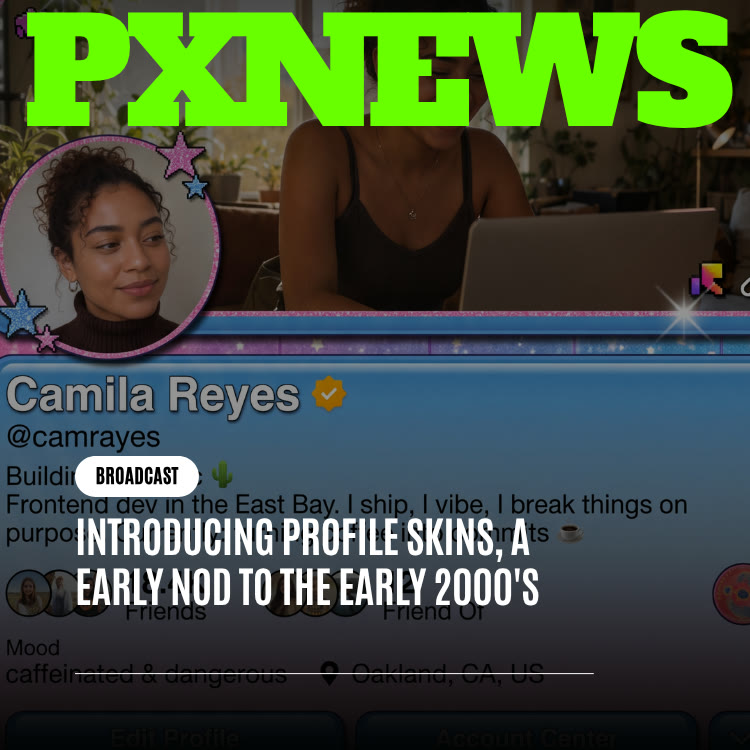
Profile Skins let you restyle your entire Whistlr profile with a complete layout, including the background, the page chrome, and the overall look, in a nod to the decorate-your-own-page era of the early 2000s internet. You pick a Skin from a searchable catalog in Edit Profile, preview it, and apply it in a few taps, and you can return to the default Whistlr look whenever you like. The feature is currently in beta, and this guide covers how it works, how to choose a Skin, and how creators and businesses can use it well.
What Whistlr Profile Skins Are
Think of a Skin as a full visual layout for your profile page. Instead of changing one color or one font, a Skin restyles the page as a set: the backdrop behind your content, the framing around each section, and the general mood of the page. Your posts, your photos, and everything you have added to your profile stay exactly where they are. The Skin changes the room, not the furniture.
What a Skin Changes and What It Leaves Alone
It helps to be clear about the boundary. A Skin changes presentation: the page background, the decorative chrome around sections, and the overall styling that gives the page its character. It does not change your content, your peers, your privacy settings, or how your posts appear in other people's feeds. Your whistles, Minis, Stories, Top 8, and links all remain exactly as you set them up. If you remove a Skin tomorrow, your profile returns to its standard look with nothing missing.
Every new account starts with no Skin applied, which means the clean, native Whistlr profile you already know. Skins are opt-in. If you never open the Skins section, nothing about your profile changes.
Inside the app, Skins carry a Beta label. ETAPX introduced them as an early drop and has been upfront that some looks may still behave a little unevenly while the team keeps refining the feature. That candor is useful: if a particular layout does not render the way you expect, switching to another or resetting takes seconds.
Why the Early-2000s Profile Era Still Resonates
If you spent time online in the early 2000s, you probably remember profile pages that looked nothing alike. People picked glittery backgrounds, loud color schemes, favorite-song players, and carefully ranked friend lists. Much of it was chaotic and some of it was hard to read, but all of it was personal. A profile page felt like a bedroom wall you were allowed to decorate.
Over the following years, most social platforms settled on uniform templates. There were sensible reasons for that, including consistency, speed, and easier moderation, but something was lost. Profiles across the big apps came to look like the same set of boxes in a slightly different order.
The appeal was never really about the graphics. It was about ownership. Customizing a page took effort, and that effort said something: you cared enough about this small space to make it different. Visitors could tell at a glance whether a page belonged to a music obsessive, an anime fan, or someone who just loved the color pink. That instant read on personality is something uniform profiles struggle to offer, no matter how polished they are. The Skins catalog leans into exactly those identities, with categories that map to the tastes people used to show off on their pages.
Whistlr has been pulling some of that personality back into the profile for a while. Features such as Top 8, a profile song, the Cruise Control playlist, mood, and About Me already give the page a sense of your current self. Skins add the missing visual layer underneath all of that. You can read more about the broader profile direction in Fresh Approach on User Profiles on Whistlr.
Your profile should feel like a room you decorated yourself. Skins hand you the paint.
How to Apply a Profile Skin on Whistlr
Applying a Skin is quick, and nothing is permanent. Here is the process step by step.
- Open your profile: Go to your own profile in the Whistlr app.
- Tap Edit Profile: This opens the profile editor, which is organized into sections such as Edit, Cover, Halo, Blip, Skins, and Badge.
- Choose the Skins section: You will see a grid of available layouts from the Skins catalog.
- Narrow the catalog: Use the search field to look up layouts by name or theme, or use the filter to browse categories such as 80s and Y2K, Glittery backgrounds, Anime, Emo and scene, Cute and kawaii, Dark, Pink, Music, Games, TV and movies, Stickers and GIFs, or Simple.
- Preview a layout: Tap a Skin to see it applied to your page before you commit.
- Apply it: Confirm your choice and the Skin goes live on your profile.
- Reset anytime: Use Reset to return to the default Whistlr look whenever you want a clean page again.
Switch as many times as you want; nothing caps it. Trying five Skins in a row to find the right one is exactly how the feature is meant to be used.
How Skins Work With Your Halo, Blip, Cover, and Mood
Skins sit underneath the other personalization tools on your profile rather than replacing them. Knowing how the pieces fit together helps you build a page that feels cohesive instead of busy.
- Halo: The frame around your profile photo stays your choice. When you pick a Skin, check that your Halo still stands out clearly against the new background. The story behind Halo is covered in Growing Popularity With Our New 'Halo' Feature.
- Blip: Your animated profile photo keeps playing as usual. A calmer Skin can make an energetic Blip the focal point, while a louder Skin works better with a subtle one.
- Cover: Your banner photo or video remains part of the page. Pair a busy cover with a simpler Skin, or a plain cover with a more decorated one. Video banners are explained in our video profile banner article.
- Badge and mood: Your online badge and current mood continue to signal what is happening with you right now, framed by whichever look you have chosen.
Skins Stay on Your Profile
A Skin is designed for your profile page. When someone visits you, they see the look you picked. Everywhere else in the app, including feeds such as Minis and Chattr, Whistlr keeps its consistent shared design so scrolling never turns into a patchwork of clashing styles. Your page is your canvas; the rest of the app stays common ground.
Tips for Choosing a Skin That Feels Like You
With a large catalog to browse, it helps to have a plan. These ideas will get you to a look you are happy with faster.
- Start from a feeling: Decide whether you want your page to feel cozy, loud, dreamy, dark, or minimal, then use the matching filter.
- Match your music: If your profile song or Cruise Control playlist leans a certain way, a Skin from the Music or Emo and scene categories can echo it.
- Check readability first: Before you settle, scroll your whole profile. If your bio, About Me, or Top 8 becomes hard to read, try a quieter layout.
- Look at it on a small screen: Visitors will mostly see your page on a phone, so judge it there rather than imagining it larger.
- Rotate with the seasons: Because switching costs nothing, some people change their Skin to match a season, a mood, or a new project.
- Keep the default in reserve: The native Whistlr look is always one tap away if you want a clean slate for a while.
Profile Skins for Creators and Business Accounts
For most people, a Skin is pure self-expression. For creators and businesses, it can also support how you present yourself to new visitors. Your profile is often the page someone checks right after a Mini or a whistle catches their attention, so its look forms part of their first impression.
Making a Skin Work for Your Brand
- Align with your visual identity: If your brand uses a dark palette or a soft pastel one, choose a Skin in that family so your profile feels like it belongs with your content.
- Protect your calls to action: Make sure your links, contact details, and any storefront entry points remain easy to find and read with the Skin applied.
- Test before a launch: If you are about to run a campaign or drop new products, settle on your look a few days ahead so the profile people land on is ready.
- Stay authentic: A playful Skin can make a business feel human, but it should still fit the tone of what you sell. A bakery and a law firm will probably make different choices.
- Use the reset when you need polish: For a formal announcement, the default Whistlr look offers a neutral, professional frame.
It is also worth remembering that your profile works together with your content. A visitor who just watched a polished product Mini and then lands on a coordinated, readable page gets a consistent story about who you are. A visitor who lands on a page that clashes with everything they just saw may hesitate. Treat your Skin choice the way you would treat a shop window: it should invite people in and make the next step obvious.
For more ways to turn profile visits into peers, read our guide on how to grow on Whistlr, and see what the profile offers overall on the profile features page.
The Thinking Behind Profile Skins
A few principles shaped how Skins work, and they explain some choices that might otherwise seem arbitrary.
- Opt-in by default: Leave Skins alone and your page behaves exactly as it always has. Nothing is forced on anyone.
- A complete look, not a pile of parts: Each Skin restyles the page as a coordinated layout, so the result looks intentional even if you choose in under a minute.
- Expression without competition: There is no ranking of Skins and no contest over whose profile looks best. You choose a look because you like it.
- Personal space, shared spaces: Decoration belongs on your own page, while feeds stay visually consistent for everyone.
- Honest about being early: The beta label reflects real work in progress, and ETAPX has said it will keep improving the catalog and how layouts render.
Self-expression features place no demands on the people around you. Changing your look does not change how your posts perform or require your peers to learn anything new. It simply makes your corner of Whistlr feel more like yours, which is reason enough to build it.
Common Mistakes to Avoid When Styling Your Profile
Skins make it easy to transform your page, and that freedom is the point. A few habits, though, can undercut the result. Keep these in mind while you experiment.
- Stacking too many loud elements: A glittery Skin, an animated Blip, a bright video cover, and a vivid Halo all at once can compete for attention. Pick one or two elements to carry the energy and let the rest support them.
- Ignoring contrast: Some decorative backgrounds make light text hard to see. If you have to squint at your own bio, visitors will too.
- Forgetting who visits: If people mostly arrive at your profile from a professional context, such as a campaign or a storefront link, consider whether your Skin sets the tone you want for that first visit.
- Treating a Skin as permanent: Some people pick one look and never revisit it. Because changes are instant and free, it is worth refreshing your page when your style or your projects shift.
- Judging from the picker alone: A thumbnail can only tell you so much. Apply a Skin and scroll your entire profile before deciding it is the one.
None of these are rules. Plenty of people love a maximal, everything-at-once profile, and that is a perfectly valid choice. The goal is simply to make sure the look you end up with is the one you meant to create.
What's Next for Profile Skins
Because Skins are in beta, expect them to keep changing. ETAPX has said it plans to keep developing the feature, and it is watching which kinds of looks people gravitate toward so future additions reflect real preferences rather than guesses. Ideas such as seasonal or limited-run looks have been discussed as possibilities, not commitments.
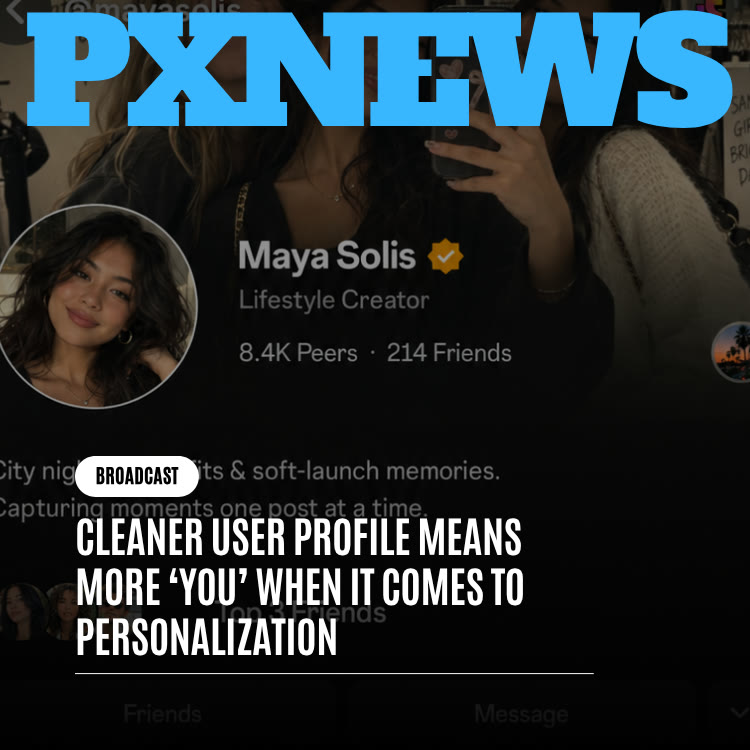
One thing the team has been clear about is that Skins will remain a form of expression rather than a competitive feature. The aim is the same feeling people had the first time they customized a page of their own: this is mine, and it looks like me. To see how this connects to the larger push toward personalization, read A Cleaner User Profile Means More 'You' When It Comes to Personalization.
Frequently Asked Questions
Where do I find Profile Skins in the Whistlr app?
Open your profile, tap Edit Profile, and choose the Skins section. You will see a grid of layouts you can search, filter by category, preview, and apply.
How do I remove a Skin and go back to the normal profile?
In the Skins section, tap Reset to return to the default Whistlr look. You can do this at any time and as often as you like.
Are Profile Skins free to use?
Yes. Skins are a personalization feature available to Whistlr users at no cost. You can browse, preview, and switch between them freely.
Why does my Skin look slightly off in places?
Skins are currently in beta, and ETAPX has noted that some looks may still render unevenly while the feature is refined. If a layout does not look right, try another one or reset to the default.
Do other people see my Skin in their feed?
No. A Skin applies to your profile page, so visitors see it when they open your profile. Feeds such as Minis and Chattr keep Whistlr's standard design for everyone.
Can a business account use Profile Skins?
Yes. Businesses and creators can apply Skins too. Choose one that matches your brand and keeps your links and contact details easy to read.
Profile Skins are a small feature with a clear purpose: giving you back the fun of making your own page look like nobody else’s. Open Edit Profile, browse the catalog, and try a few looks. If none of them feels right today, the default Whistlr profile is always waiting.